Guides
How to Use a Social Wall at Corporate Events and Conferences
Planning a moderated photo wall for a company dinner, convention or conference: goals, screen placement, timing, moderation, prompts, branding and consent.
5 min read
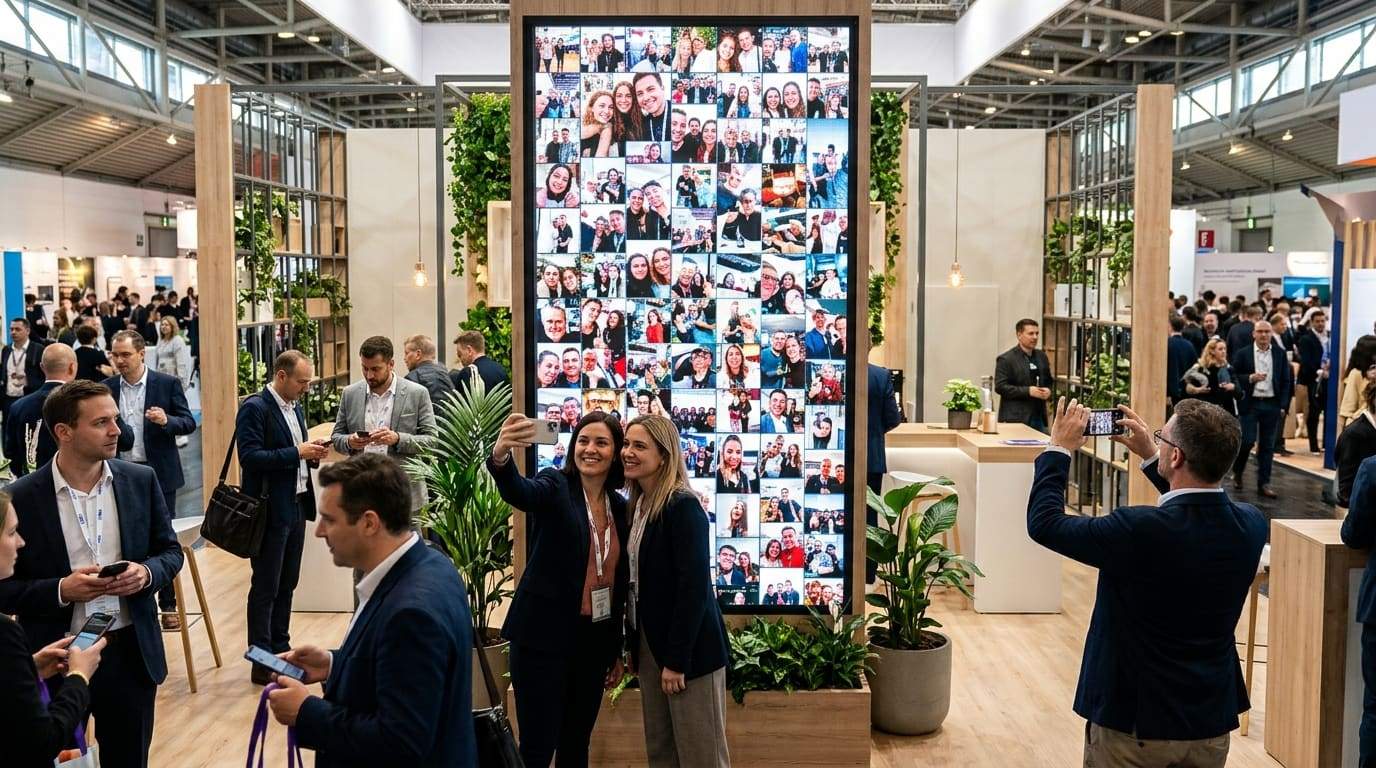
A social wall at a corporate event works best when it has a clear job: getting people to mix at a company dinner, making a convention feel lively between sessions, or collecting photos for internal communications afterwards. Attendees scan a QR code, post a photo or a short message, and a moderation team approves it before it appears on the screens. Done well, it costs attendees ten seconds and gives organisers a visible sign of how the event is going, plus an album of real photos to reuse.
Start with the goal
Decide what you want the wall to do before you decide anything else. The goal shapes where the screens go, when they're on and what you ask people to post.
| Goal | What it looks like | What to ask for |
|---|---|---|
| Break the ice | Team dinner, offsite, new-starter event | Team photos, "one word for this year", shout-outs to colleagues |
| Energy between sessions | Convention, sales kick-off, conference | Photos from the floor, quick takeaways, "best idea you heard today" |
| Recognition | Awards night, year-end celebration | Messages to winners, team congratulations |
| Content for afterwards | Any event with internal comms value | Candid photos, group shots, behind the scenes |
You can combine goals, but pick one to lead with. A wall trying to do everything usually ends up showing a mix nobody quite pays attention to.
Where to place the screens
The wall only works if people see their posts appear. Good spots:
- Registration and foyer. First impressions, and people are waiting anyway.
- Coffee and lunch areas. The best place at a conference: people are relaxed and have their phones out.
- Dinner or party room. Visible from most tables, not behind the stage.
- Exhibition or networking areas at a trade fair or convention.
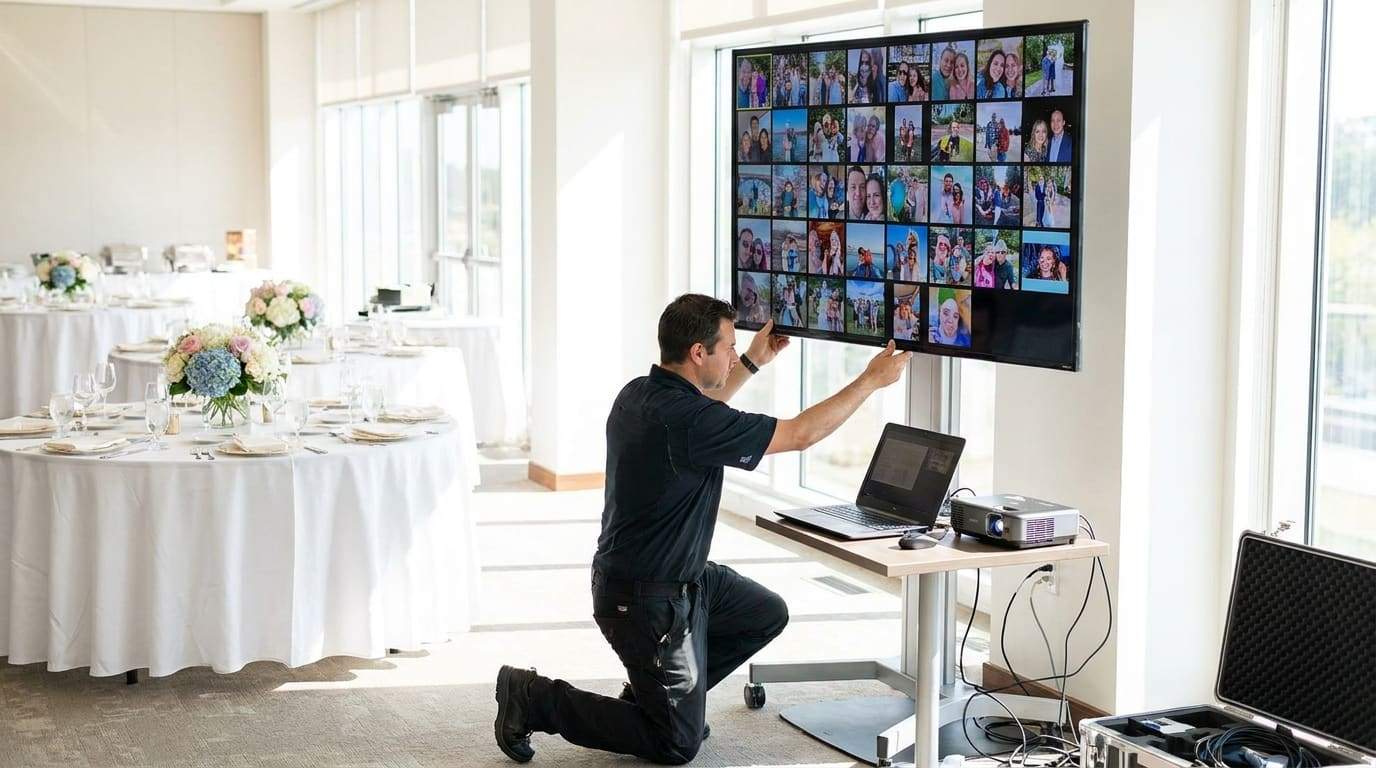
The same screen link can be opened on several screens, so you can run one wall across the foyer, the catering area and the main room. Any TV, monitor, projector or LED wall that can show a web browser will do. For the technical details, see our guide on choosing a screen, projector or TV.
When to show it (and when not to)
- On: registration, breaks, lunch, networking, dinner, the party.
- Off or on another screen: during keynotes, panels and speeches. A social wall competing with a speaker on the main stage is distracting and can feel disrespectful to the speaker.
- Spotlight moments: show the wall on the main screen just before the opening, after the closing keynote, or during the awards walk-up music. A countdown before a key moment gets phones out.
With remote control, someone on the event team can switch the screen from their phone without going backstage.
Build a moderation team
At a corporate event, keep moderation on (in Moby Moments it's optional, but here it's essential). Everything posted appears on screens in front of colleagues, clients or the press, so nothing should go up unchecked.
- Assign named moderators, ideally from the comms or events team, with clear shifts if the event runs all day.
- Agree guidelines in advance: no confidential information (slides with numbers, whiteboards, product prototypes), no photos of people who've opted out, nothing that would embarrass anyone, on-brand tone.
- Approve quickly. If posts take ages to appear, people stop posting. Check every few minutes.
- Use phones. With an operator PIN, moderators can approve posts and control the screen from their own phone, no account needed.
Prompts that get people posting
Corporate audiences are often more reserved than wedding guests. Give them a specific, low-risk reason to post:
- "Team photo: everyone from your department in one shot"
- "Your biggest takeaway from this morning, in one sentence"
- "Shout out a colleague who made this year easier"
- "Photo with someone you met today for the first time"
- "Where in the world did you travel from?"
Have the host or MC announce the wall once at the start and once before lunch or dinner. Put the QR code on screen, on table cards and in the event programme or app. A few people from the organising team posting first helps a lot.
Branding
A wall that matches the event looks part of the production rather than an add-on. Choose a screen style and colours that fit your brand guidelines and the stage design. If an agency or event planner runs it for you, professional setups can carry their own or the client's branding.
Image consent
At a company event, the organiser is acting as a business, so treat photos as you would any other personal data:
- Tell attendees in the invitation or registration that photos will be shown on screens and how they'll be used afterwards.
- Be specific about reuse (internal newsletter vs public marketing).
- Offer a simple way to opt out, and brief moderators on it.
- Keep the album private and limit access.
Our guide to guest photos and privacy covers this in more detail. It's general information, not legal advice; involve your legal or data protection team where you have one.
Reusing the album
After the event, approved photos stay in the event album, ready to view and download. That makes follow-up easy:
- A recap post on the intranet or internal newsletter.
- A thank-you email to attendees with the album link (private, with a password if needed).
- Photos for next year's invitation or the internal event page, where your consent wording covers it.
- Material for the team that organises the next edition.
Measuring how it went
Keep it simple and honest. You don't need industry benchmarks to learn something useful:
- Number of posts over the whole event.
- Rough participation: posts compared with the number of attendees.
- When people posted: which moments generated the most activity, and which screens or prompts worked.
- Qualitative feedback: what attendees and organisers said about it.
Compare against your own previous events rather than against numbers from elsewhere. Next time, move the screens or change the prompts and see what shifts.
Frequently asked questions
Do attendees need to download an app?
No. They scan the QR code with their phone camera and a web page opens. No account or sign-up is needed, and giving a name is optional.
Can we stop confidential or inappropriate content appearing?
Yes. With moderation on, nothing reaches the screen until a moderator approves it from the dashboard or from their phone.
Does it work if the venue wifi is overloaded?
Attendees can post using mobile data. The screens need a stable connection, ideally wired or on a separate network, and they reconnect automatically if the connection drops.
Next steps
See how Moby Moments works for corporate events and conferences, or open the free demo to try the moderation flow in your browser. Prices are one-off per event, with packs for agencies; details are in the pricing section.