Guides
How to Set Up a Live Photo Wall at Your Wedding, Step by Step
What you need for a wedding photo wall, when to show it, where to put the QR codes, who moderates, plus a day-of timeline, a checklist and mistakes to avoid.
5 min read
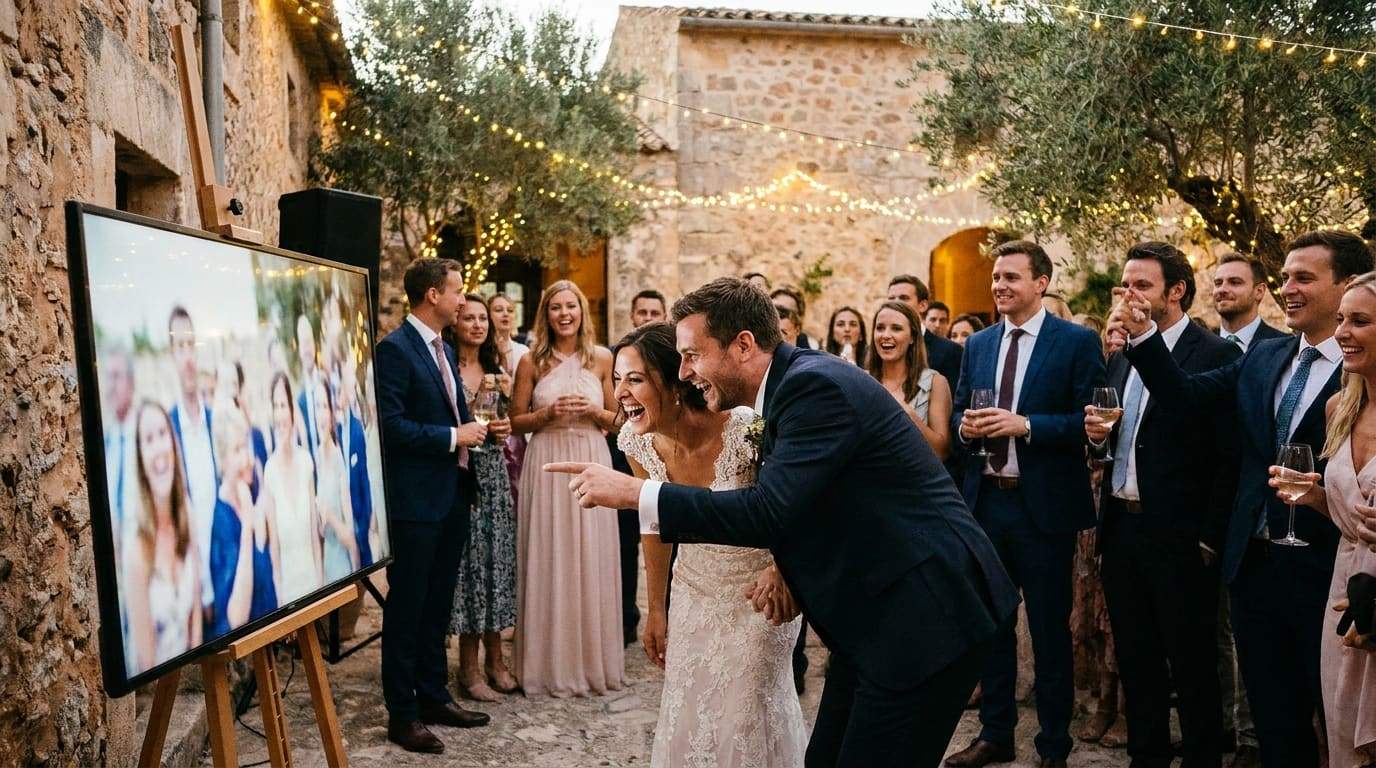
To set up a live photo wall at your wedding you need three things: a screen with a web browser, a QR code that guests can scan, and one person keeping an eye on what gets posted. Guests scan the code with their phone camera, send a photo or a message, and it appears on the screen a moment later. The hard part isn't the technology. It's choosing the right moments to show the wall and making sure people know it exists.
What you actually need
- A screen. A TV, a monitor, a projector or the venue's video wall. Anything that can display a web browser works.
- A device to drive it. A laptop connected by HDMI, a mini-PC or a smart TV with a built-in browser. You open the screen link and go full screen.
- A stable connection for the screen. Guests can post over their own mobile data if the venue wifi is weak, but the screen itself needs a reliable connection. A cable or a 4G/5G router beats shared guest wifi.
- QR codes. One at the entrance and one on each table works well. Printable table cards save you designing them yourself.
- A moderator. Someone who isn't the couple, with their phone charged.
When to show the wall (and when to switch it off)
A photo wall is at its best during the parts of the day where people are mingling and have their phones out anyway. A rough plan:
| Moment | Show the wall? | Why |
|---|---|---|
| Ceremony | No | Phones away. |
| Drinks reception | Yes | Guests are mingling with phones out. Most first posts come from here. |
| Dinner | Yes | Tables see it between courses; table QR codes do the work. |
| Speeches and toasts | Switch it off or pause it | Nobody should be watching a screen while the best man is talking. |
| First dance | Pause it | All eyes on the couple. |
| Party | Yes | The busiest stretch for posts. |
The remote control makes this easy: a helper can change the screen from their phone without walking over to the laptop.
Where to put the QR codes
People only scan what's in front of them. Good spots:
- On every table. A small card next to the centrepiece or the table number. This is the single most effective placement.
- At the entrance or seating plan. Guests stop here anyway, especially if you use a table finder.
- Near the bar. Queues are dead time; give people something to do.
- On the screen itself. Most wall layouts can show the QR in a corner so anyone watching can join straight away.
Avoid putting the only QR code on the order of service or the invitation. By the evening, nobody has it to hand.
Who moderates
With moderation on, nothing appears on screen until someone approves it. At a wedding that's usually worth it: it filters out blurry shots and in-jokes that won't land with your grandparents.
Pick someone who:
- Is not the couple and not in the wedding party with duties during the day.
- Knows both families reasonably well, so they can judge what's fine.
- Will check their phone every few minutes.
With an operator PIN, they can approve posts and control the screen from their own phone, no account needed. Agree simple rules beforehand: no unflattering photos of the couple, nothing that would embarrass a guest, and when in doubt, leave it out.
A timeline for the day
Two to three weeks before
- Create the event and choose the screen style.
- Ask the venue what screen, projector and connection they have. Get the details in writing.
- Print table cards and the entrance QR.
The day before (or the morning of)
- Test the full setup at the venue and send a test photo from your phone.
- Give the moderator the PIN and do a quick run-through.
On the day
- Someone (planner, venue coordinator or a friend) switches the screen on before guests arrive at the reception.
- The MC or DJ mentions the wall once at the start of dinner: "Scan the code on your table and send a photo or a message to the couple."
- Pause during speeches and the first dance, then turn it back on.
After the wedding
- Approved photos stay in the event album. Share the link with guests, or keep it private and password-protected if you prefer.
Checklist
- Screen and device confirmed with the venue
- Stable connection for the screen (cable or mobile router as backup)
- Screen link tested in full screen
- Sleep, screensaver and notifications turned off on the laptop
- QR cards printed and placed on tables
- Entrance QR on display
- Moderator chosen, briefed and given the PIN
- MC or DJ has a one-line announcement ready
- Plan for speeches and first dance (pause or switch off)
- Someone responsible for switching it on and off
Common mistakes
- Nobody announces it. A QR code on its own gets some scans. A single mention from the MC gets far more.
- The couple moderates. You will not have time. Delegate it.
- Leaving it on during speeches. It splits attention and can feel disrespectful.
- Relying on guest wifi for the screen. With a hundred phones on one network, the screen can stall.
- Testing on the day. Laptops update and cables go missing. Test the day before.
- Screen in the wrong place. If it's hidden in a corner, nobody sees their posts and nobody posts again. Put it where the dinner tables and dancefloor can both see it. For the technical side, see our guide on choosing a screen, projector or TV.
Frequently asked questions
Do guests need to download an app?
No. They scan the QR code with their phone camera and a web page opens where they can send photos and messages. No account or sign-up is needed, and adding a name is optional.
What if the venue has poor wifi?
Guests can post using their own mobile data. The screen is the part that needs a stable connection; with Moby Moments it reconnects automatically if the connection drops for a moment.
Can we keep the photos afterwards?
Yes. Approved photos stay in the event album, where you can view and download them. You decide who gets the link, and the album can be kept private.
Can we show the wall on more than one screen?
Yes. The same screen link can be opened on several screens, for example one in the dining room and one by the bar.
Ready to try it?
If you're planning a wedding wall, have a look at how Moby Moments works for weddings, or open the free interactive demo and post a test photo. It runs in your browser and nothing is uploaded.